
The Add New Property form allows users to register and manage detailed information about a property. It is organized into multiple tabs for convenience.
1. Property Tab
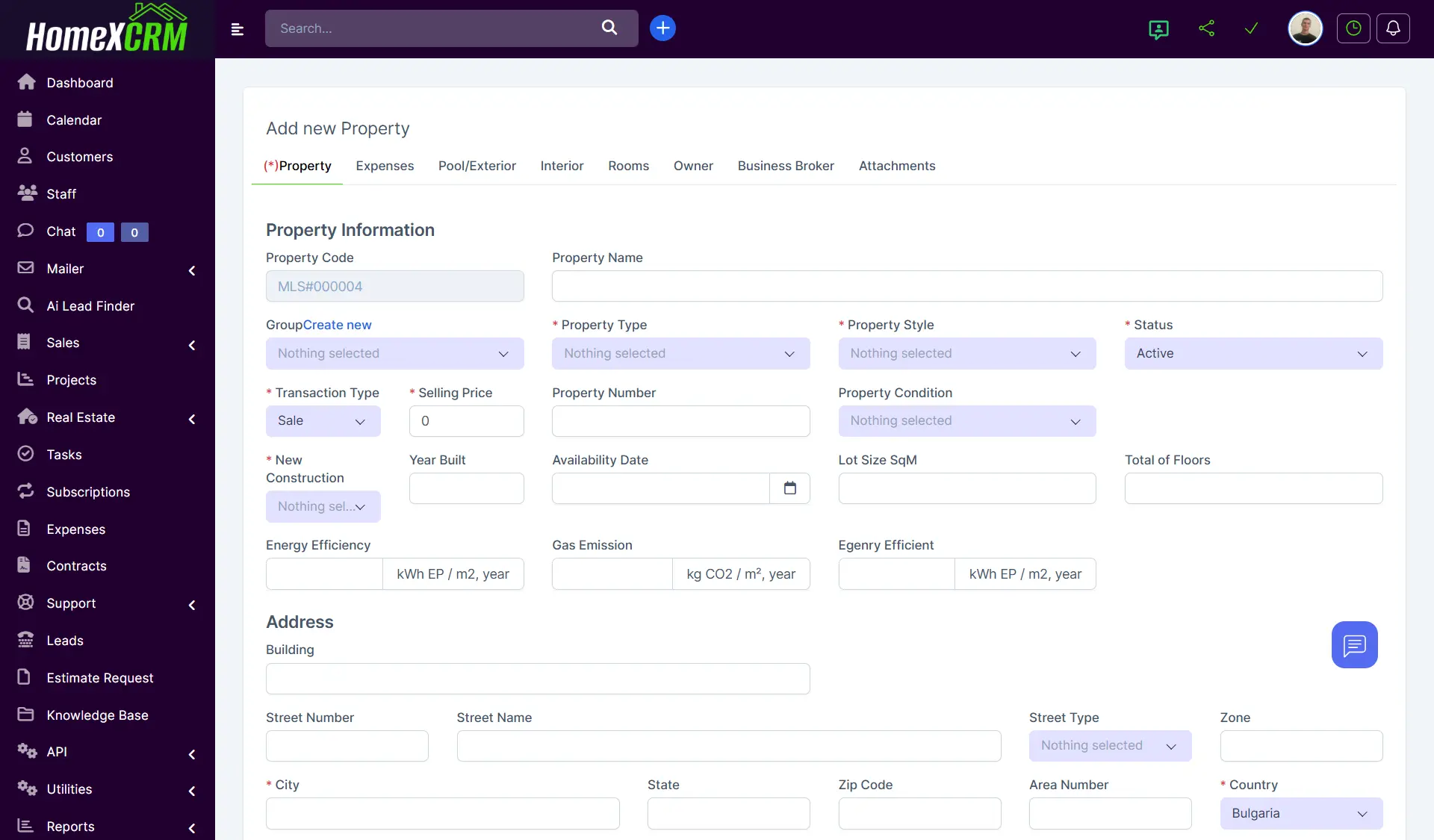
Required Fields (marked with *)
- Property Type – Select the type of property (e.g., Residential, Commercial).
- Property Style – Choose the architectural style (e.g., Modern, Colonial).
- Status – Current status of the property (e.g., Active, Pending).
- Transaction Type – Select Sale or Rent.
- Selling Price – Enter the asking price.
Other Fields
- Property Code – Unique identifier for the property (e.g., MLS#000004).
- Property Name – Enter a descriptive name.
- Property Number – Optional internal reference number.
- Property Condition – Select condition (e.g., New Construction).
- Year Built – Year the property was constructed.
- Availability Date – When the property is available for sale/rent.
- Lot Size (SqM) – Land area.
- Total Floors – Number of floors in the property.
- Energy Efficiency – Energy consumption (kWh EP / m², year).
- Gas Emission – CO₂ emissions (kg CO₂ / m², year).
Address Fields
- Building, Street Number, Street Name, Street Type, Zone – Full address details.
- City, State, Zip Code, Area Number, Country – Required for location mapping.
- Latitude / Longitude – GPS coordinates for mapping.
Nearby Facilities
- Schools & Child Care – Add nearest schools or childcare facilities.
- Hospitals – Add the closest hospitals.
- Landmarks – Add relevant nearby landmarks.
Description
- Enter a detailed description of the property.
2. Expenses Tab
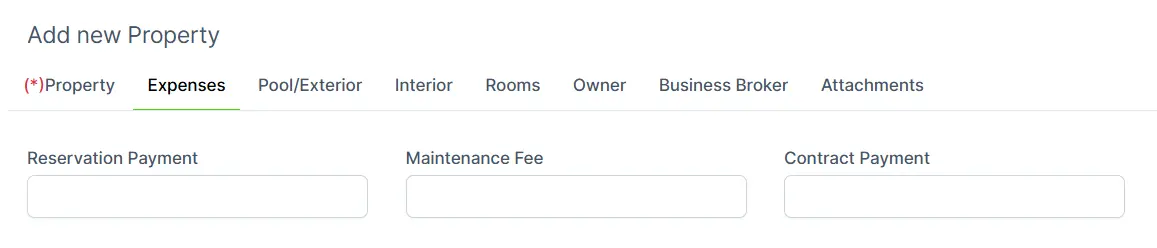
- Track financial details such as Reservation Payment, Maintenance Fee, and Contract Payment.
3. Pool / Exterior Tab
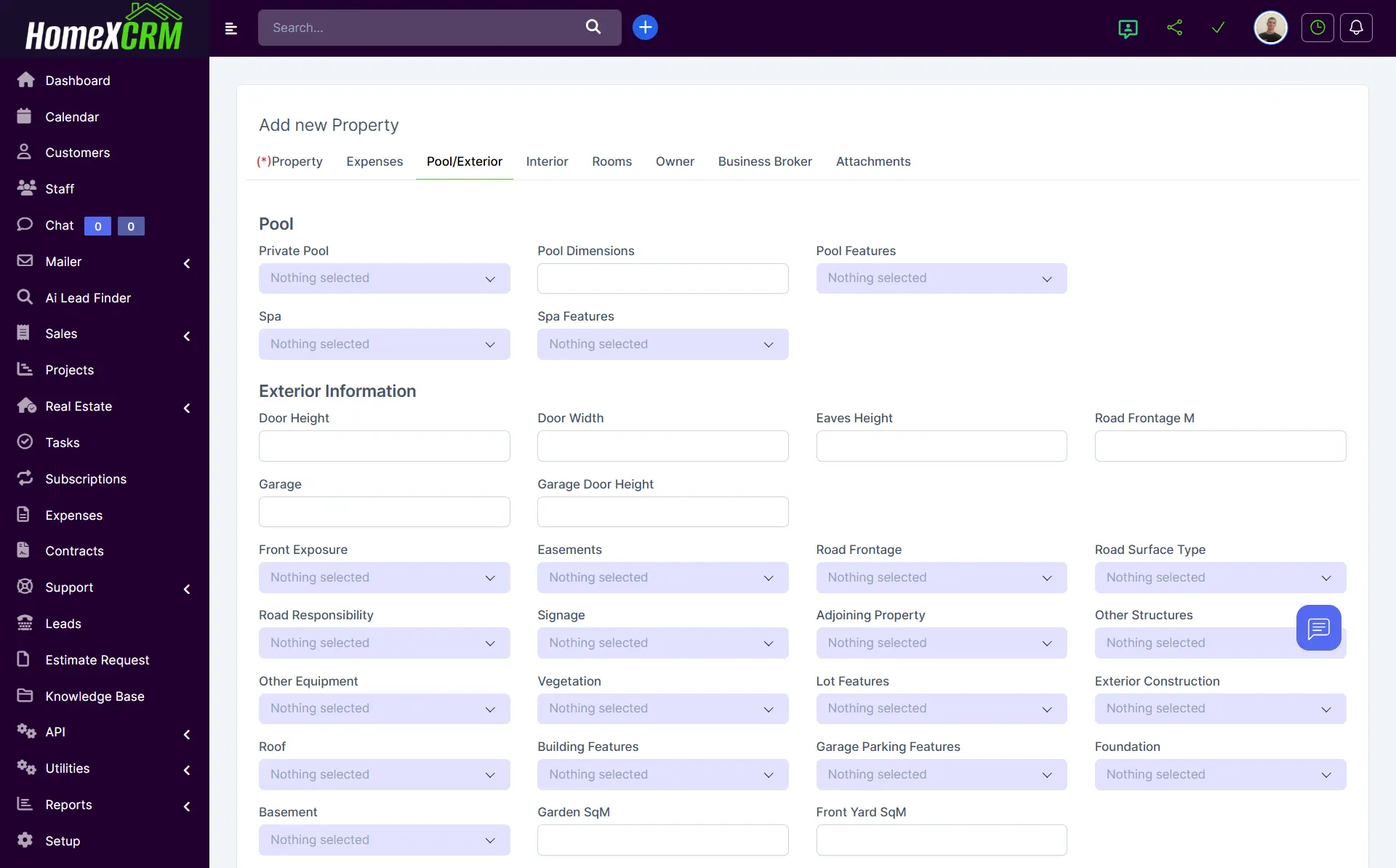
- Pool – Specify pool type, dimensions, and features (e.g., Heated, Infinity, Self-Cleaning).
- Spa – Details about spa features.
- Exterior Information – Garage, road frontage, building exposure, easements, signage.
- Other Structures & Equipment – Add garages, workshops, security systems, or other equipment.
- Vegetation & Lot Features – Trees, landscaping, lot type (corner, waterfront, etc.).
- Construction & Roof – Materials and roof type.
- Building Features – Facilities like elevators, loading docks, or security features.
- Garage & Parking – Number of spaces, type of parking.
4. Interior Tab
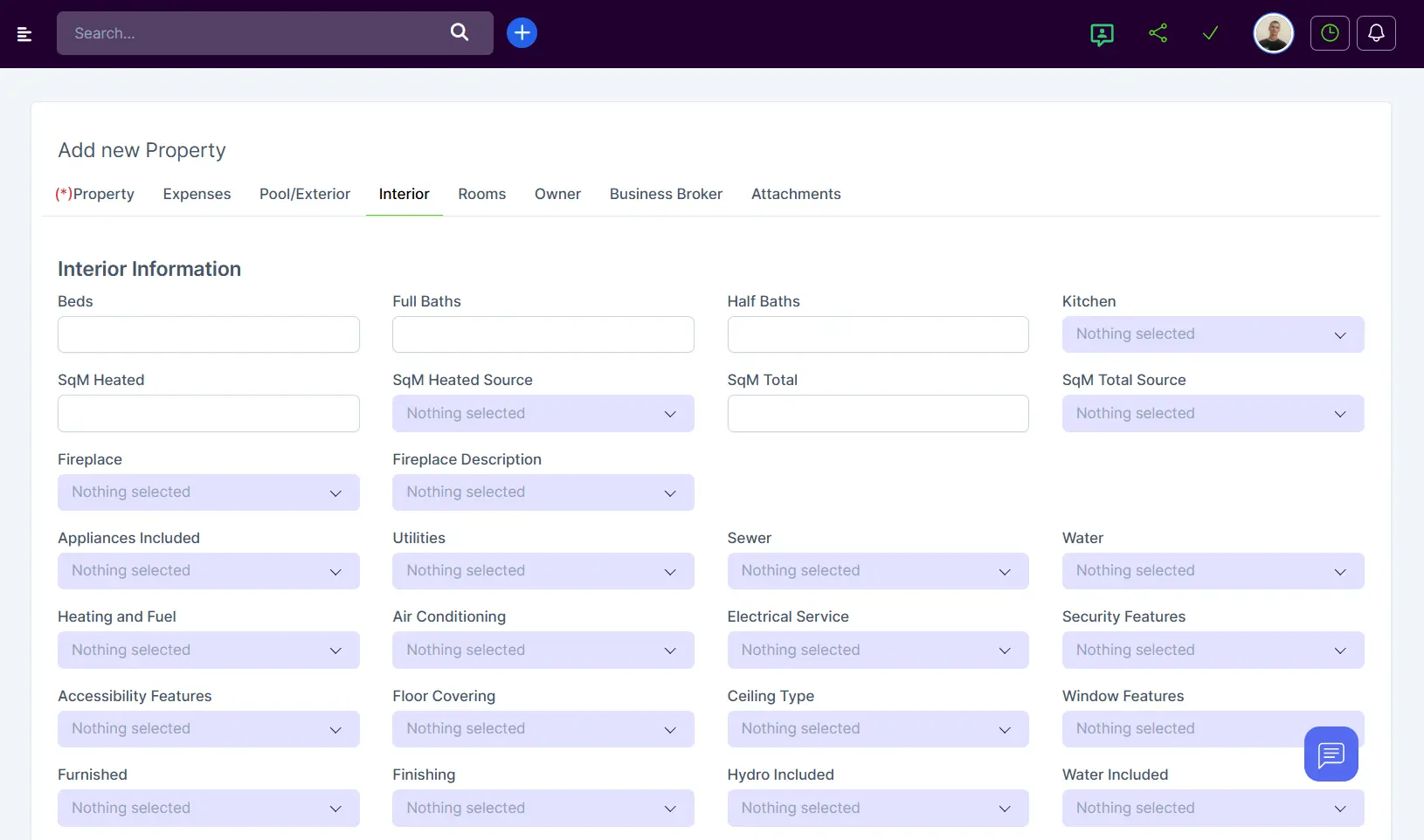
- Rooms – Beds, full baths, half baths, kitchen details, heated area (SqM).
- Fireplace – Type and location.
- Appliances Included – Dishwasher, washer, dryer, refrigerator, microwave.
- Utilities – Electricity, water, gas, solar, sewer.
- Heating & Air Conditioning – Type of heating, fuel, and A/C.
- Security & Accessibility Features – Cameras, alarms, wheelchair access.
- Flooring, Ceiling, Windows, Finishing – Material and style options.
- Furnished – Indicate if property comes furnished.
5. Rooms Tab
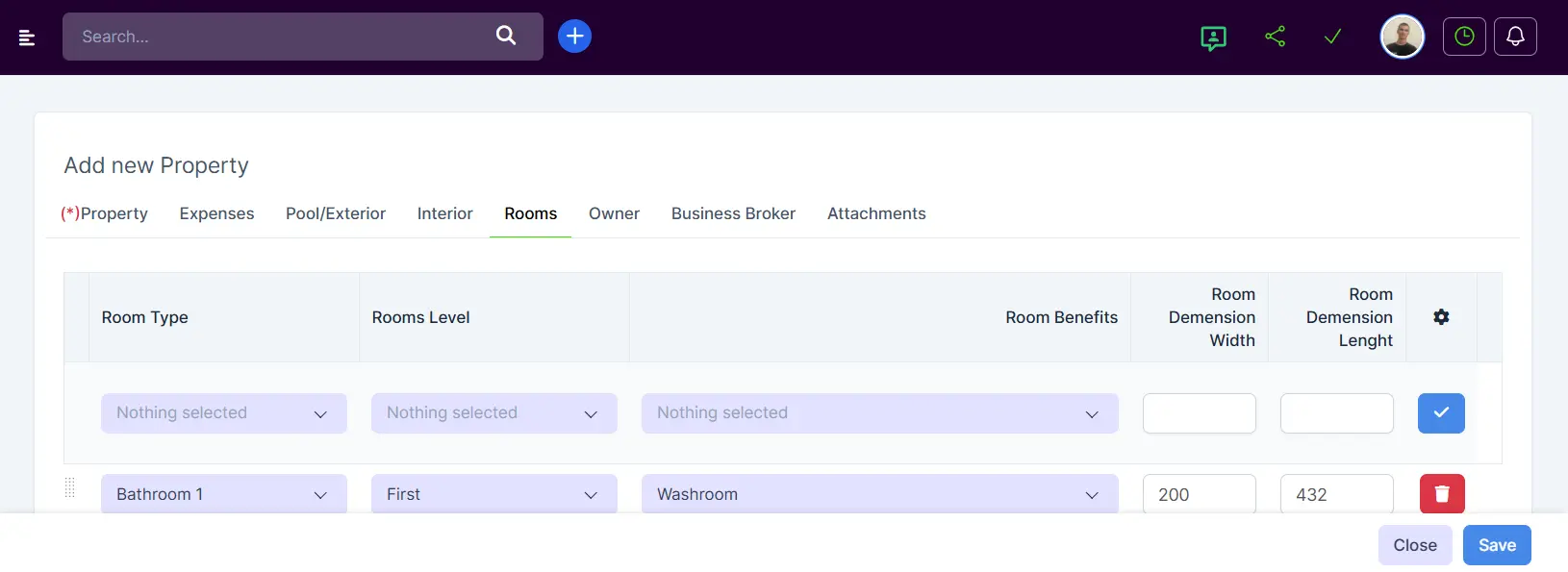
- Add room-specific information:
- Room type
- Level
- Dimensions (Width × Length)
- Special benefits (e.g., Balcony, Closet, Washroom)
6. Owner Tab
- Property Owner – Name, phone, email.
- Ownership Type – Specify ownership (e.g., Sole Owner, Co-Owner).
7. Business Broker Tab
- Broker Details – Commission percentage, main contact, agency information.
8. Attachments Tab
- Images – Add main and additional photos.
- Videos – Attach property walkthroughs.
- PDF Files – Upload contracts, brochures, or floor plans.
Notes:
- Fields marked with (*) are mandatory.
- Tabs help organize complex property data for easier navigation.
- Always save changes by clicking the Save / Add Property button at the bottom of the form.